
Purpose: Start a Student Scholarship nomination for a student at your school, invite the student and a parent to fill in their parts, and submit it to your association.
The problem this solves
A Student Scholarship application starts with the student’s athletic director. You start the nomination in AMP, the student and a parent fill in their own parts, and you submit the finished application to your association.
Before you start
- You are a member of your association and the athletic director at the student’s high school.
- You have the student’s name and an email address they check.
Start the nomination
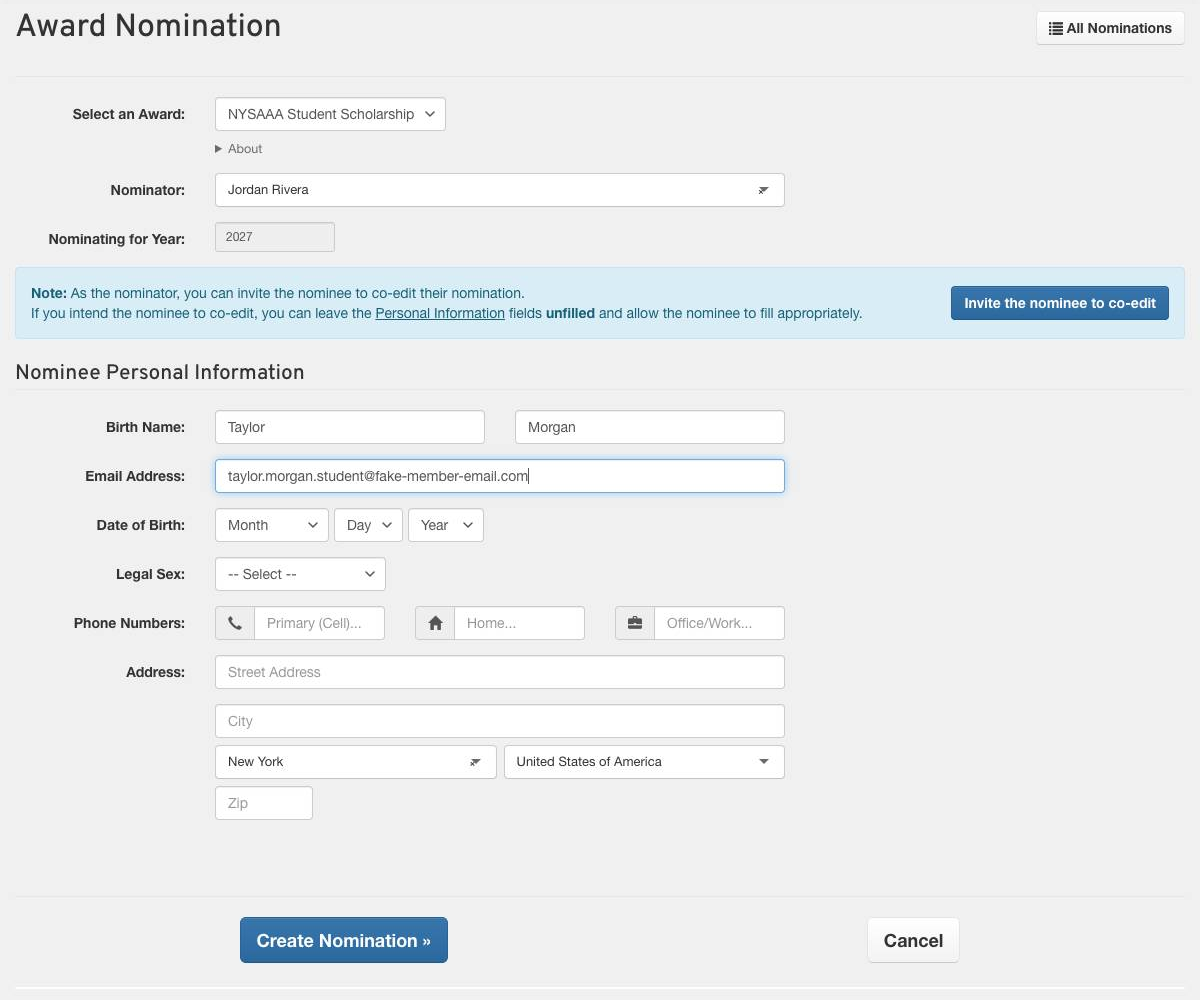
Click Awards at the top of AMP, find your association’s Student Scholarship and click Create Nomination. If the student is not in AMP yet, click Enter Non-member Information, then fill in their Birth Name and Email Address. You can leave the rest for the student. Click Create Nomination ».
Check the first page
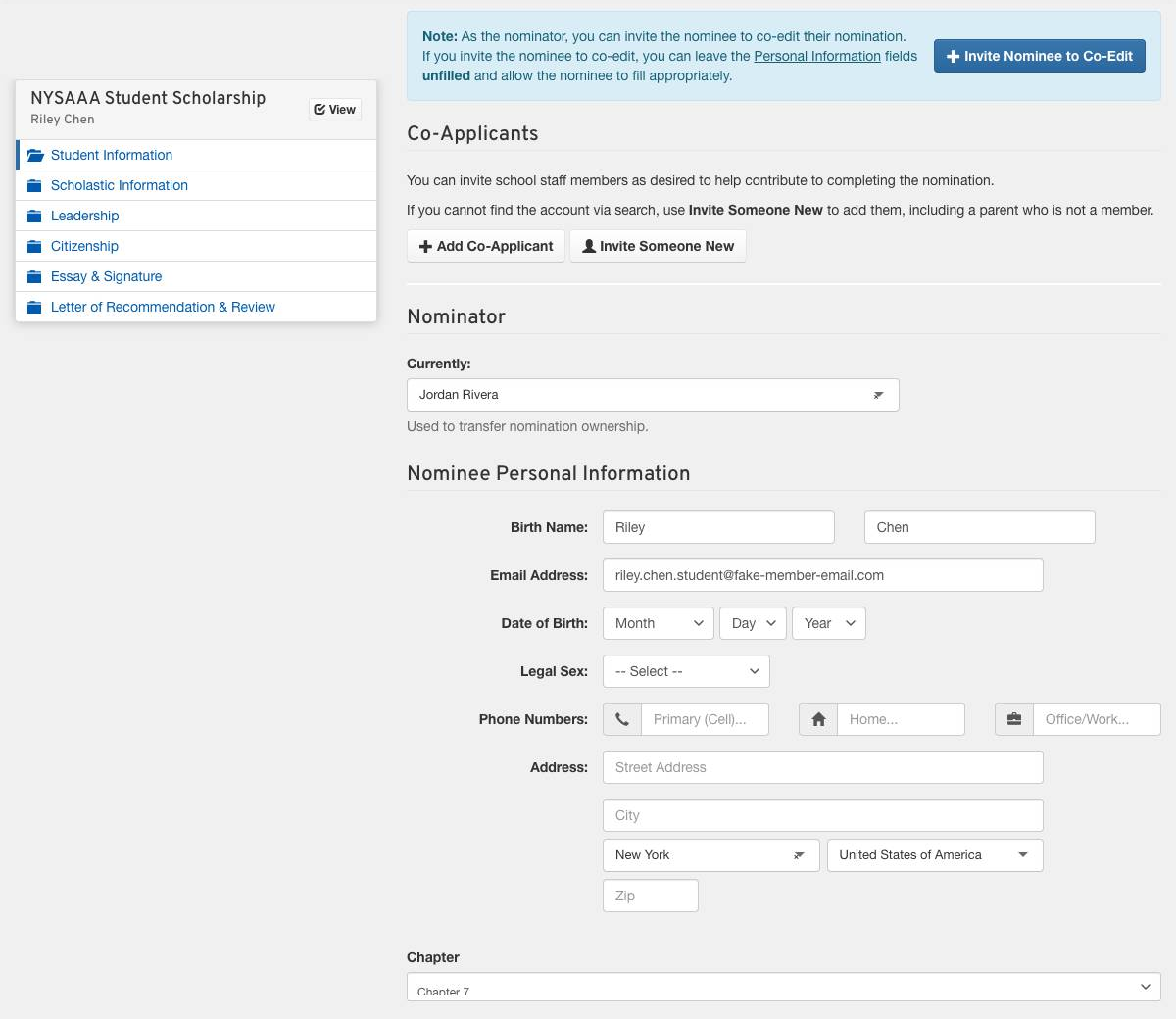
The nomination opens on its first part. If your association groups nominations by chapter or section, AMP fills that in from yours. Change it only if the student belongs to a different one. If AMP says neither you nor the student is in one, ask your association to add you to yours, then create the nomination again.
Invite the student and a parent
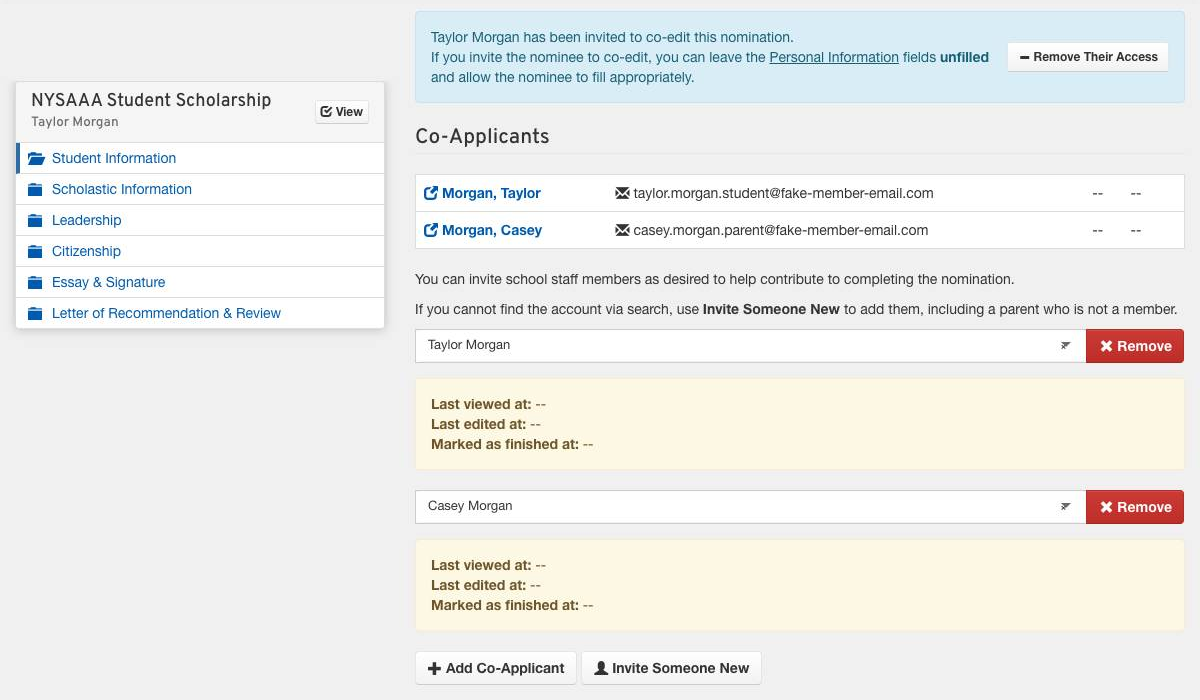
- The student: click Invite Nominee to Co-Edit. AMP emails them a link to the nomination.
- A parent or guardian: click Invite Someone New, type their Full Name and click Continue. Choose Guest/Relative as the Registrant Type, add their Email Address and their Title/Relationship, such as Parent, then click Register & Invite.
Each person you invite can fill in every part of the application. When the student ticks I am ready to submit, AMP emails you, and their box under Co-Applicants shows when they finished.
Review and submit
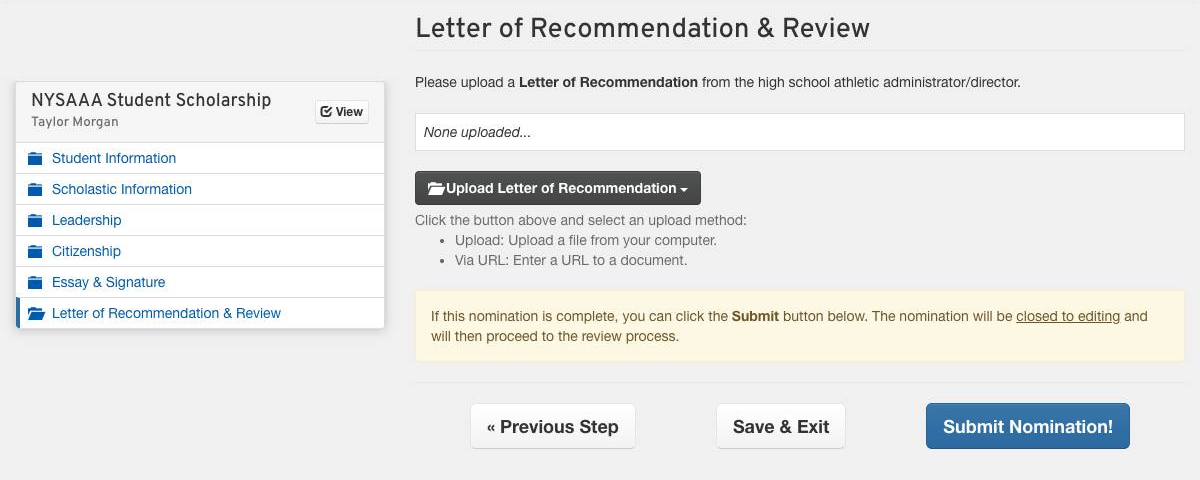
Open each part from the list on the left and check it, and upload any document the application asks you for, such as a letter of recommendation. When every part is done, click Submit Nomination! on the last page. The nomination is then closed to editing and goes to your association’s committee.
Good to know
- Only you can submit. The student and parent can fill in every part, but the Submit button is yours.
- Check everything before you submit. AMP does not stop you submitting an unfinished application, and a submitted one is closed to editing.
- Your association sets the deadline. Each nomination shows it as its Submission Deadline.
- Students have their own guide to filling in their parts, published alongside this one.