
Purpose: Give every award a yearly checklist of dated tasks that emails the right people before each one is due and when it is missed, that your team signs off as the work gets done, and that carries itself into each new class year.
The problem this solves
Running an award means a string of dated steps each year, like confirming evaluators, opening nominations and sending finalists to the deciders. They usually live in someone’s head or a spreadsheet, nobody can see what is done, and a missed date is noticed only when it is too late. Each award now has its own checklist for each class year, with a due date on every task, reminder emails before and after it, and a record of who finished it.
Before you start
- Awards are turned on for your organization.
- You are an association administrator, or a decision maker for the award.
Find the Award Checklist
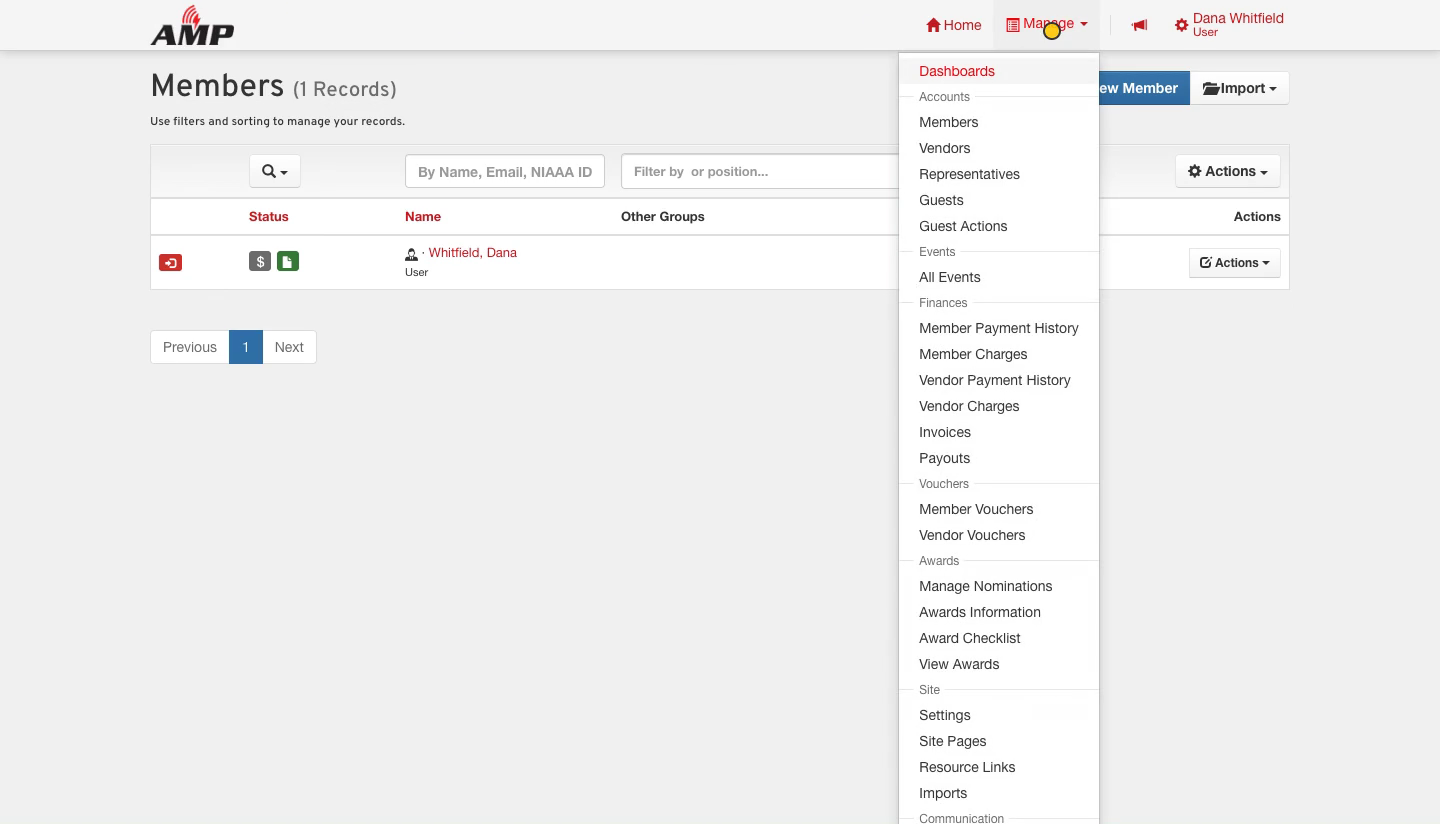
Open Manage and choose Award Checklist under Awards. You can also click Checklist on an award’s nominations page.
Add a task, or start from a standard one
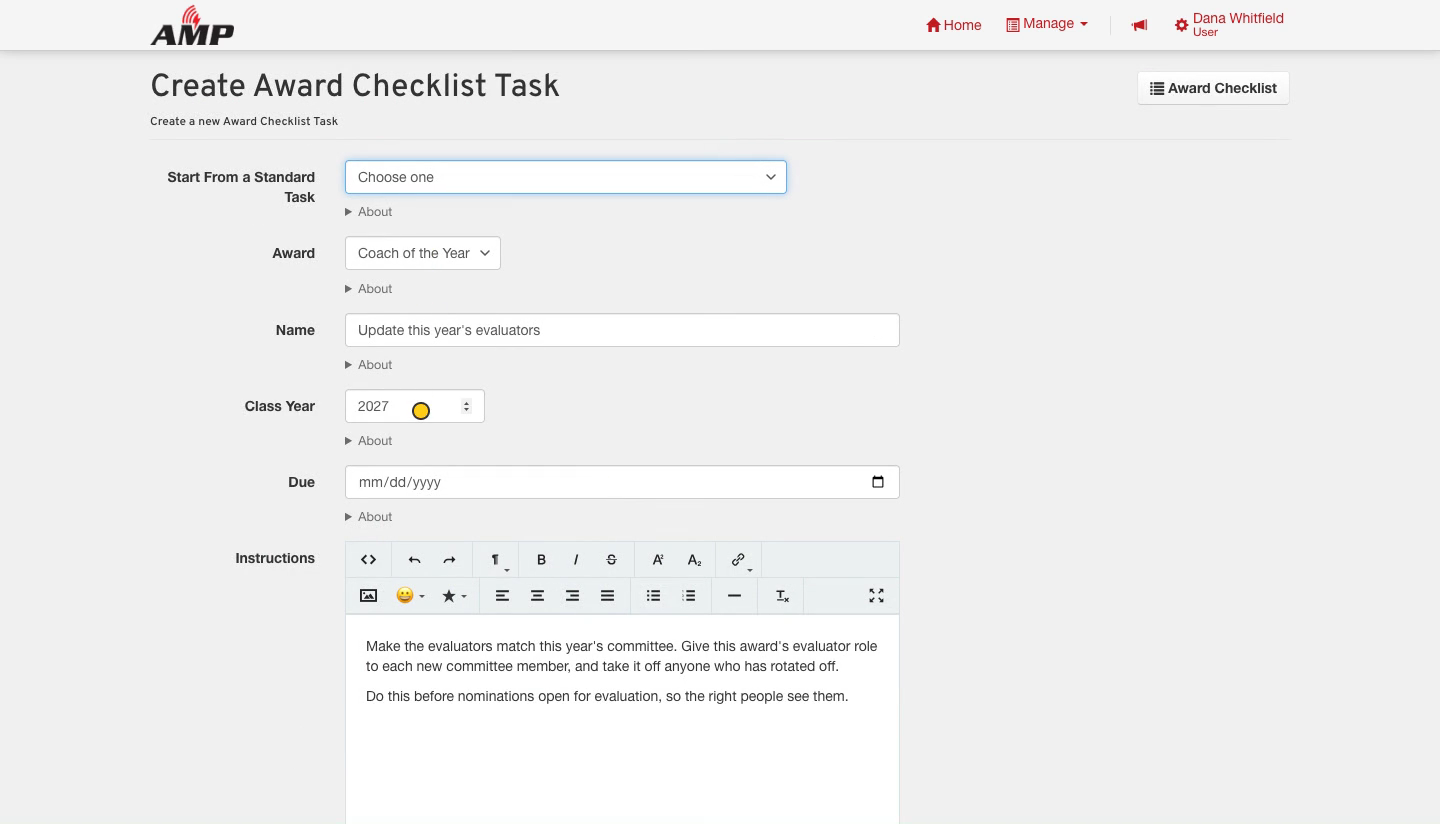
Click New Award Checklist Task. To save typing, choose one of the standard tasks in Start From a Standard Task, and its name and instructions fill in for you. You can change both. The six standard tasks are reminding evaluators to open the submitted nominations, updating this year’s evaluators, marking the chosen nominee and declining the others, moving nominations to the next evaluation phase, carrying eligible nominations into next year, and printing the nomination pool for the committee meeting and review.
Then finish the form:
- Award is already chosen when you manage just one. With several, pick one and the class year follows it.
- Give the task a Name, if you did not start from a standard one.
- Set the Due date.
- Open Add Instructions to write out the steps. They are optional, but they tell whoever picks the task up exactly what to do.
Choose who gets reminder emails
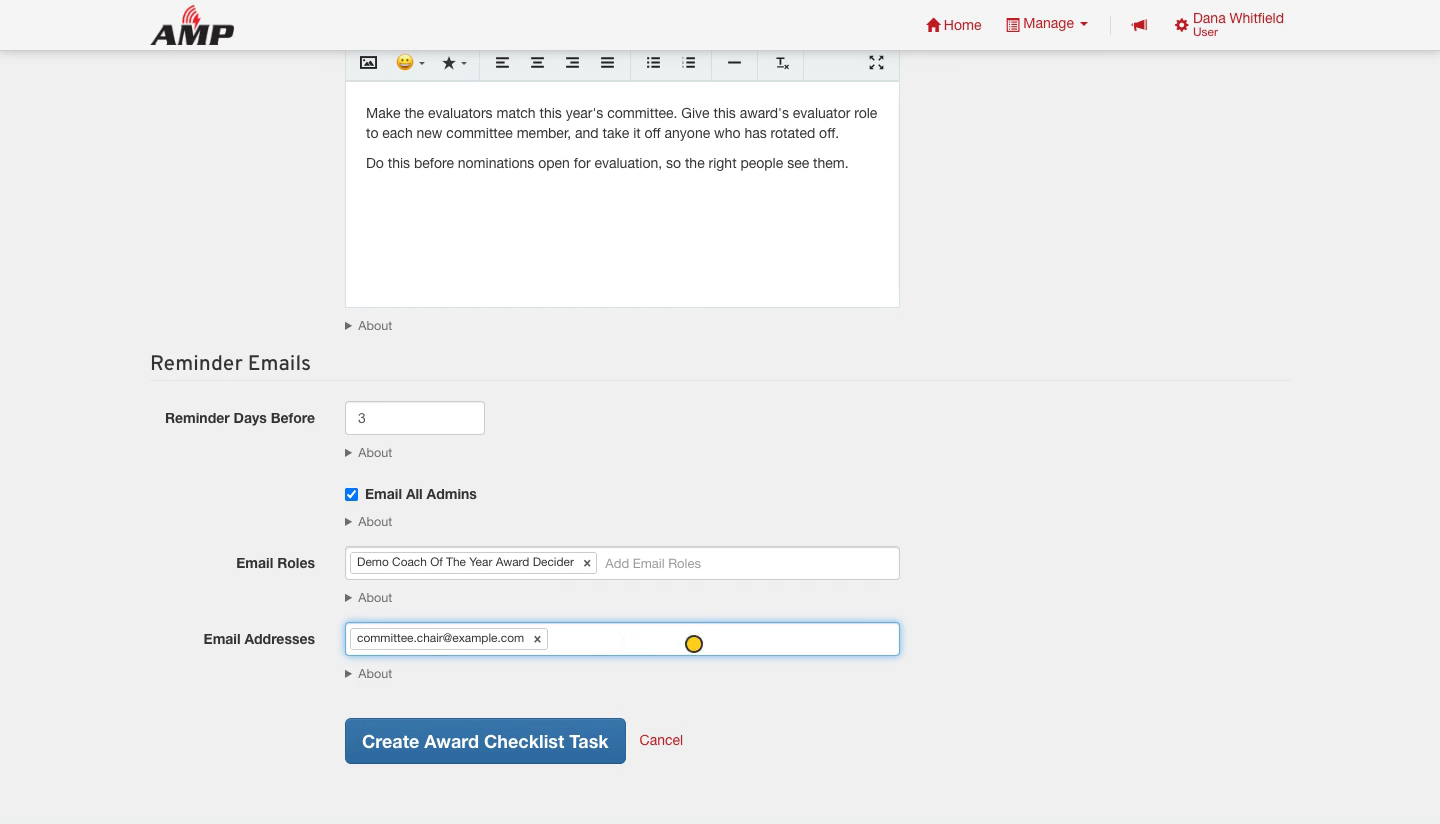
Under Reminder Emails, choose who hears about the task. You can use any mix of the three:
- Email All Admins is checked to start.
- Email Roles starts with the award’s decision makers. Add any other role, such as the award’s evaluators.
- Email Addresses takes anyone else, such as a committee chair without an account.
Reminder Days Before sets how early the first email goes out. Then click Create Award Checklist Task.
The emails go out on their own
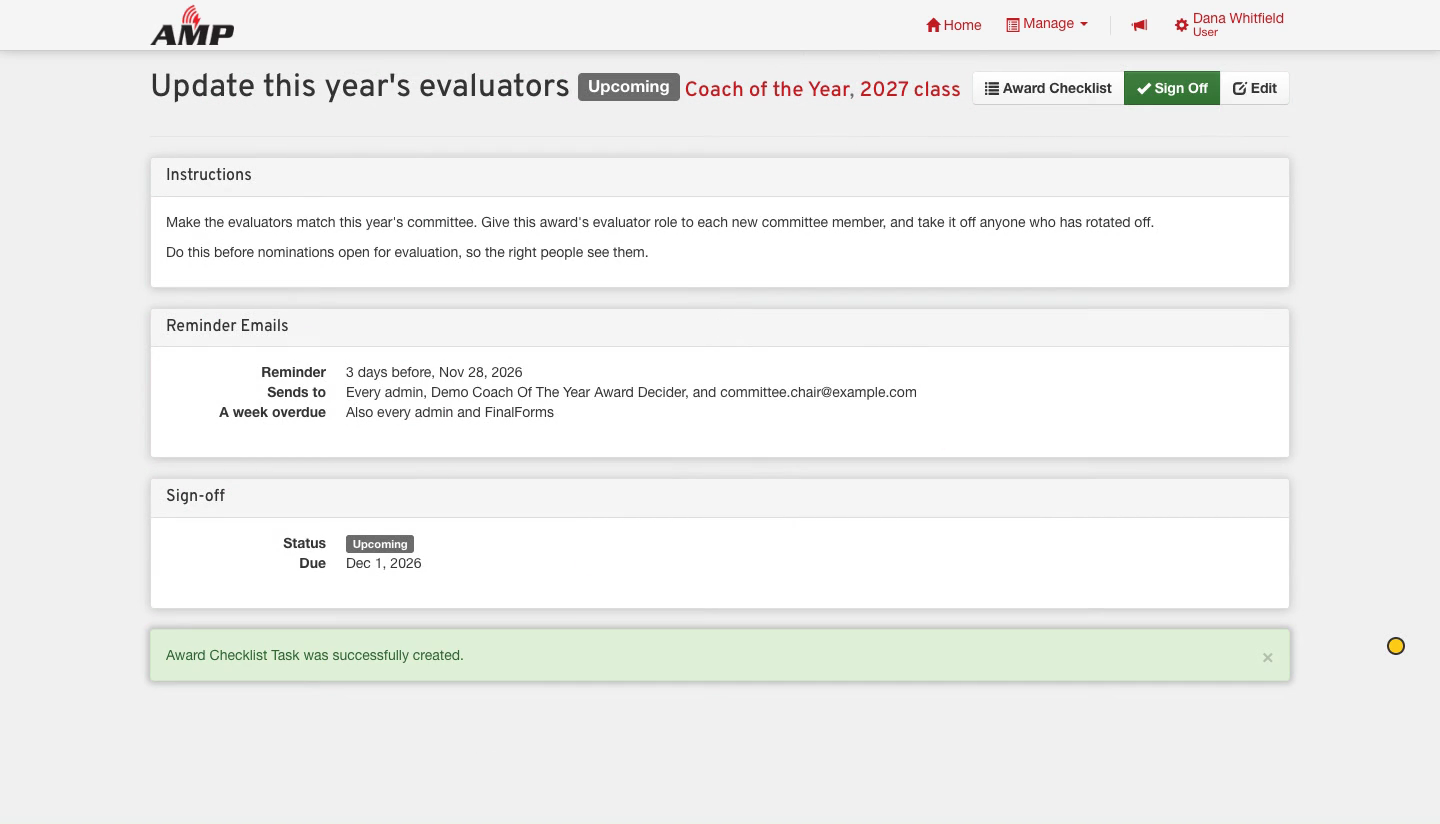
Until a task is signed off, AMP emails its recipients three times:
- a reminder the set number of days before the due date;
- a notice the day after the due date, if it is still open;
- a week after the due date, a notice to every admin and to FinalForms as well, so a missed step never goes unnoticed.
Each person gets one email a day, listing every task due for them. Signing a task off stops its emails.
See where everything stands
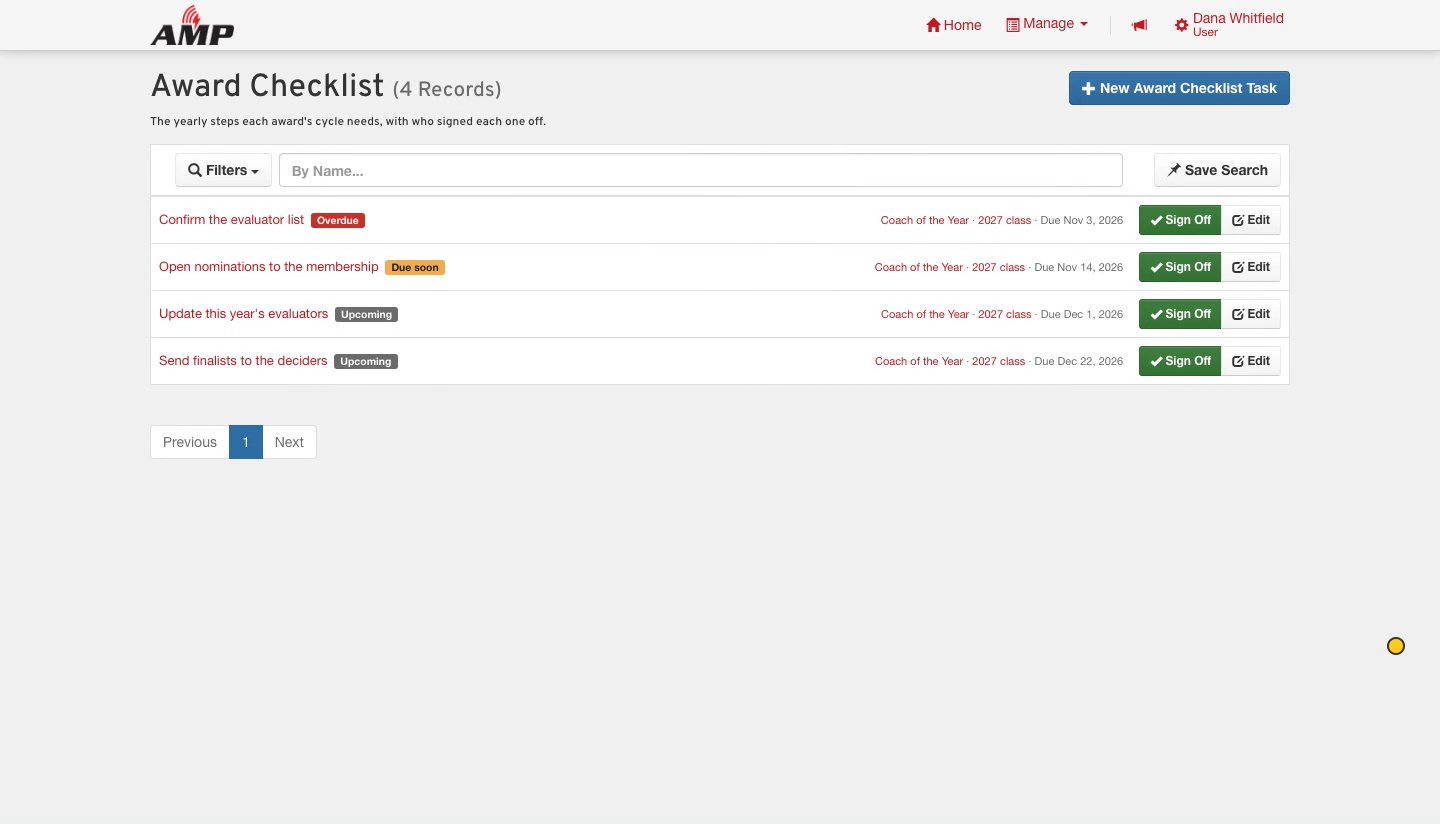
The list opens on the tasks still to do, oldest due date first. Every task is labeled Upcoming, Due soon, Overdue or Done. The award and the class year on each task are links: the award opens its nominations, and the class year opens that class’s nominations. Use Filters to narrow the list by award or class year, or type in the search box to find a task by name.
Sign off a task and see who did it
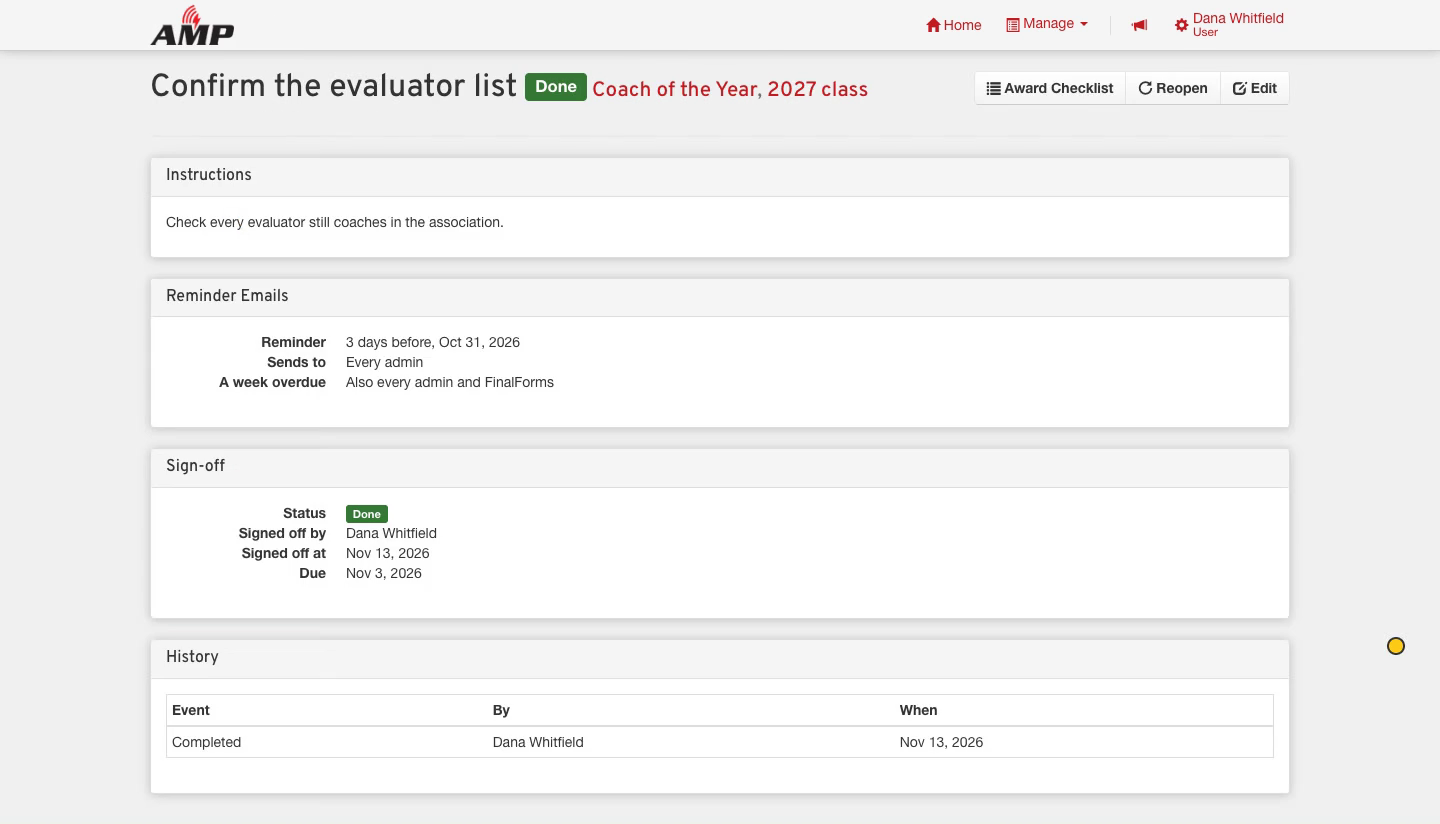
When the work is finished, click Sign Off on the task, either in the list or on its own page. AMP records who signed it off and the date, and the task drops off the list of open tasks. To see it again, open Filters and change Done from Open Tasks to All Tasks, or to Done Tasks for finished work only.
Reopen a task when it needs more work
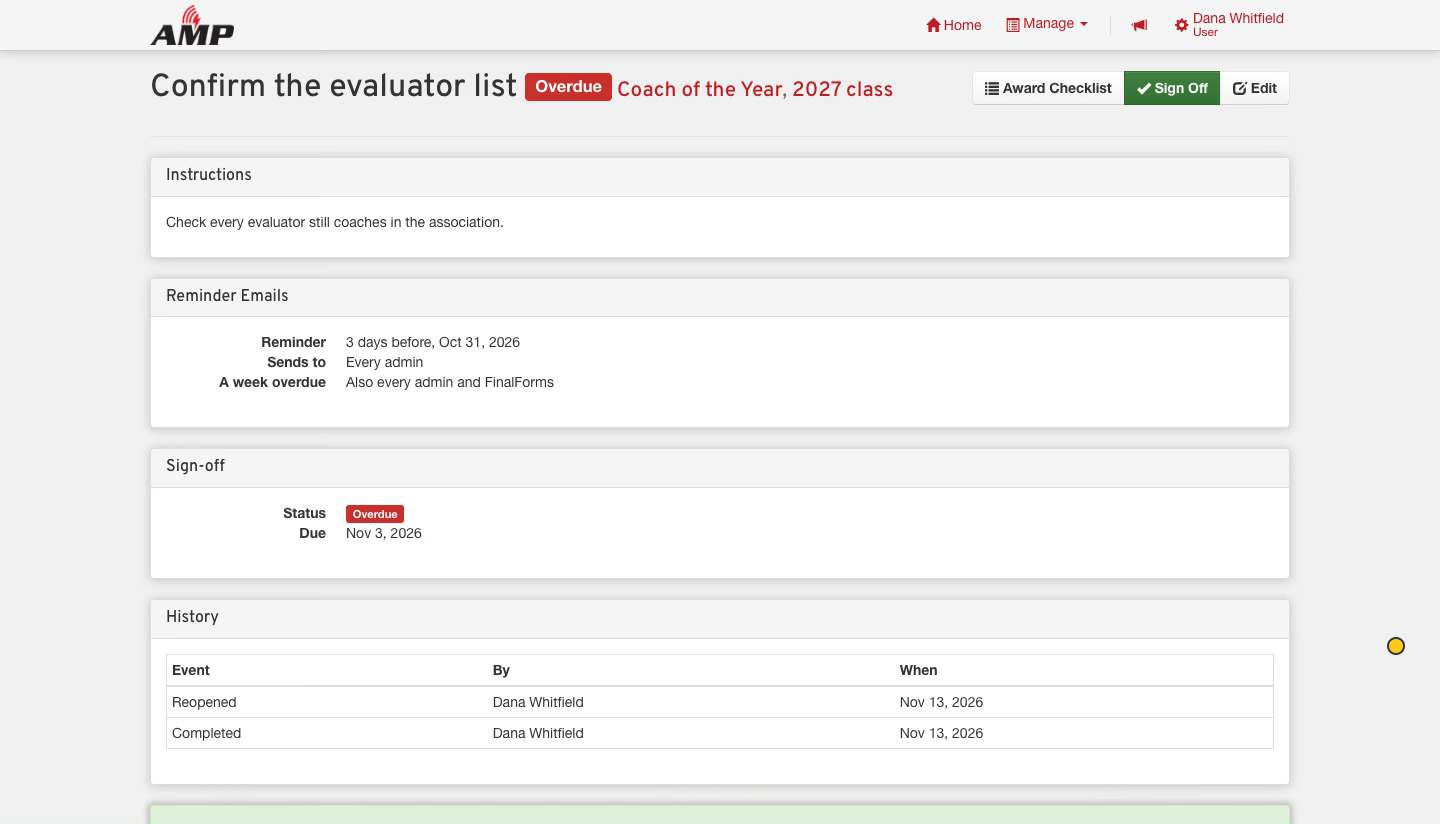
If the work comes back, open the task and click Reopen. It returns to the list of open tasks, the earlier sign-off stays in the task’s History table, and its emails start again.
Each new year starts with last year's checklist
You do not have to rebuild the list. On the day an award’s class year rolls over, AMP copies last year’s tasks into the new year by itself, with every date moved a year forward, the instructions and email recipients kept, and no sign-offs.
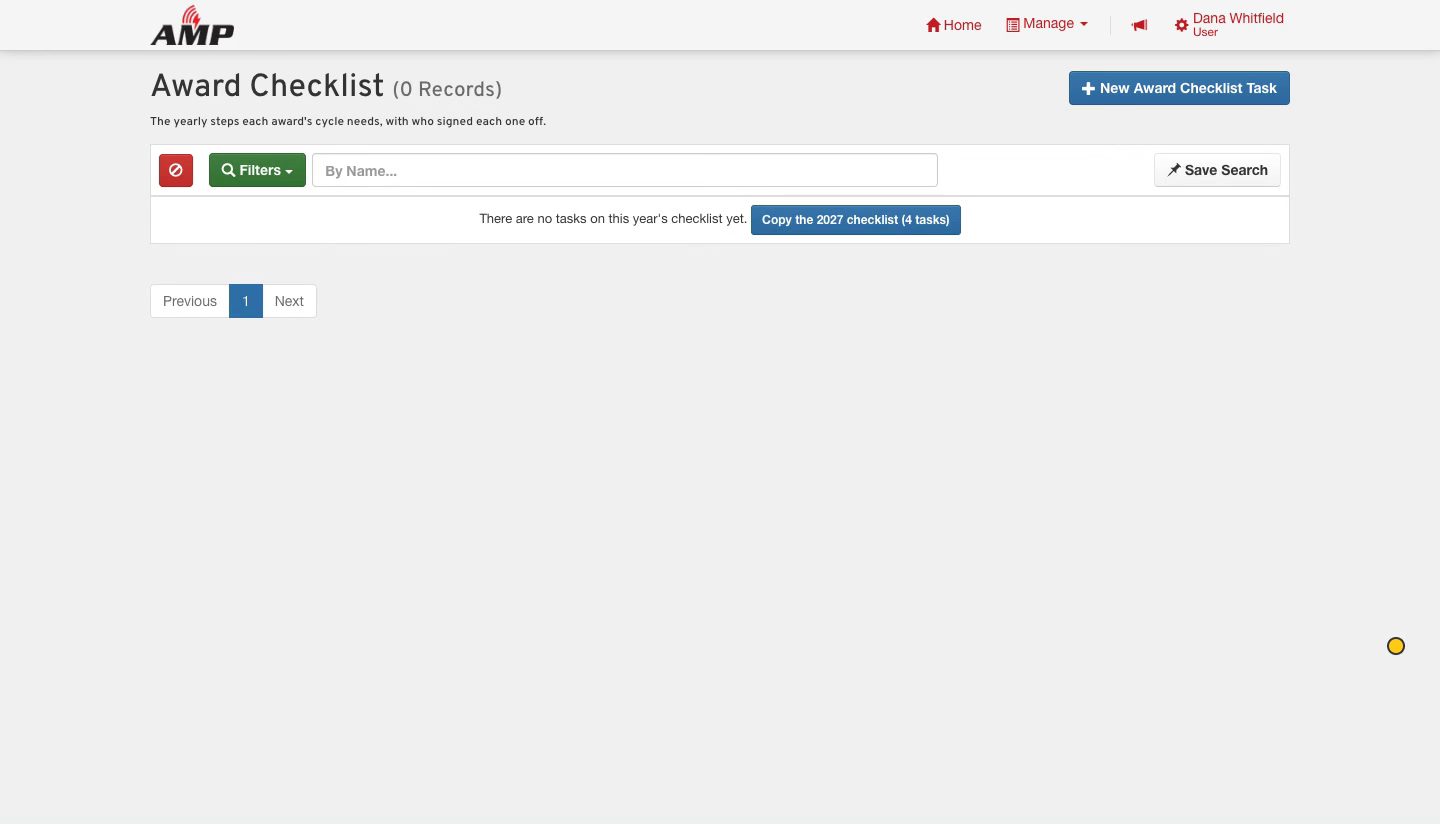
If a year was ever skipped, copy it yourself. Open Filters, pick the award, enter the empty year and click Search, then click Copy the 2027 checklist.
What you end up with
One checklist per award and class year, with every task dated, its people reminded before it is due, visibly overdue or done, and signed off by a named person.
Good to know
Who can use it. Full awards administrators can work every award’s checklist. An award’s decision makers can add, edit, sign off and reopen tasks on their own award only.
Turning the emails off. Anyone can stop the reminder and the day-after notice from Communication in their profile, under Award checklist reminders. The week-late notice still reaches every admin, and addresses typed into a task always receive the emails.
Only an award with a checklist is carried forward. An award with no tasks at all does not get one started for it. Add its first year’s tasks yourself, and every year after that arrives on its own.
Copying only fills an empty year. A year that already has tasks is never copied into, so nothing is duplicated or overwritten. Filter to a single award first, and the button copies from that award’s most recent earlier year.
Watch it end to end
Watch the full walkthrough (3:29). The narration is AI-generated.