
Purpose: Add the Event Badge Review block to one of your event’s member forms, and each registrant sees the badge AMP will print for them and can fix their name, position or workplace for this event before you print, instead of at your check-in table.
The problem this solves
A badge prints whatever is on the attendee’s account: their full legal name, a position title that went out of date two jobs ago, a school name too long for the line. Usually nobody notices until the attendee picks up the badge, and then the fix is a pen or a reprint at a busy table.
The Event Badge Review block puts that badge in front of each registrant while they fill out your event’s forms. They see exactly what will print, and they can change it for this event without touching their account.
Before you start
- You are an association admin who can edit the event.
- The event uses AMP member badges. Use AMP Member Badges is checked on the event’s AMP Attendee Badges step.
Add the block to a member form
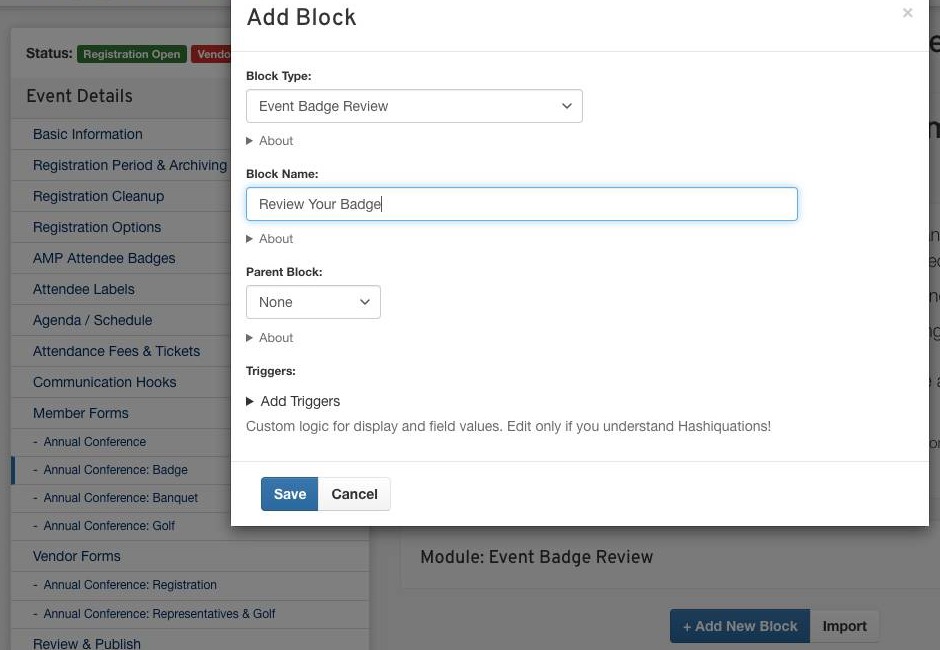
Edit the event and, under Member Forms, open the form registrants should see it on. Click + Add New Block, set Block Type to Event Badge Review, give it a Block Name you will recognize, and click Save. The form now shows Module: Event Badge Review where the badges will appear.
- Put it on any member form of the event. A short form of its own, with a sentence above the block telling registrants what to check, works well.
- Add an HTML block above it if you want to explain what you can and cannot accommodate.
What your registrants see and change
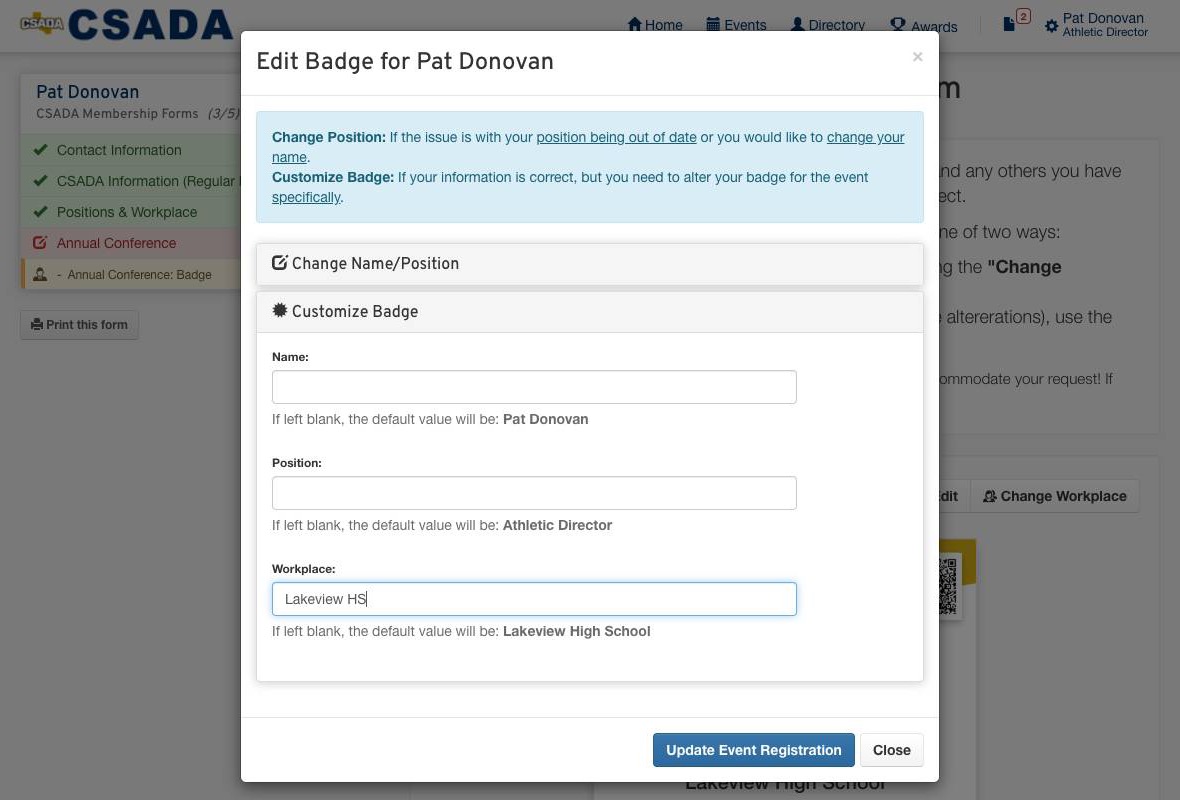
This is the registrant’s screen, not yours. When a registrant opens the form, they see a card for each badge: their own, plus one for every member or guest they registered. Each card shows the badge as it will print, with two buttons.
- Edit opens Edit Badge for the person. Customize Badge has a Name, Position and Workplace box for this event only. Each box says If left blank, the default value will be: followed by what prints today. Change Name/Position changes the name and positions on their account instead. They click Update Event Registration to save, and the badge on the card updates.
- Change Workplace lets them add the right school or district to their account. Guests do not have this button.
What you end up with
Badges that print the way your attendees want them to read. A box a registrant filled in prints on this event’s badge only. A box left blank keeps printing from their account, so an account fix made later still reaches the badge.
You can make the same change for anyone. On the event’s attendee list, click View for the attendee, then choose Actions → Edit Badge Info. Registrants can also reach the same window any time from the event’s Badge button, then Edit Badge Info.
Good to know
It shows a badge; it doesn’t record a sign-off. AMP keeps no record that anyone looked at their badge. What you can see is the form’s own status, like any other member form.
Add it before registration opens. Registrants who already completed the form are not sent back to it. They see the block only if they open the form again.
Customize Badge is for this event only. The same person registering for your next event starts from their account again.
If it doesn't work
The Edit window asks the registrant to enter their positions. Their account has no position yet. Once they add one and save, Customize Badge appears the next time they click Edit.
The Edit window has no Customize Badge panel and no instructions. Check that Use AMP Member Badges is on for the event, on its AMP Attendee Badges step. The Name, Position and Workplace boxes come from that setting.